The charger's local page
Open the charger's own web page on your home network, read what it shows, and know which changes need a login.
Ce guide n'est pas encore traduit dans votre langue. Vous le lisez en anglais.
What the local page is
Every Veton charger serves a small web page of its own. It runs on the charger itself, so it works without internet and without an account: anyone on the same network can open it and see what the charger is doing. It is the same information the Veton app shows, with a few installer-facing extras.
The local page only works from inside your home or building network. From elsewhere, use the Veton app or the portal at v2.vetoncontrol.com.
Open the page
- Connect your phone, tablet or computer to the same Wi-Fi or wired network as the charger.
- Open a browser and type http://ev3000.local:8080 in the address bar.
- The dashboard appears. If it does not, wait a few seconds and try again; some phones need a moment to find the charger by name.
If several Veton chargers are on the same network they all answer to the name ev3000.local, so you may land on the wrong one. Your installer can give you the IP address of each charger; open http://:8080 instead.
What the dashboard shows
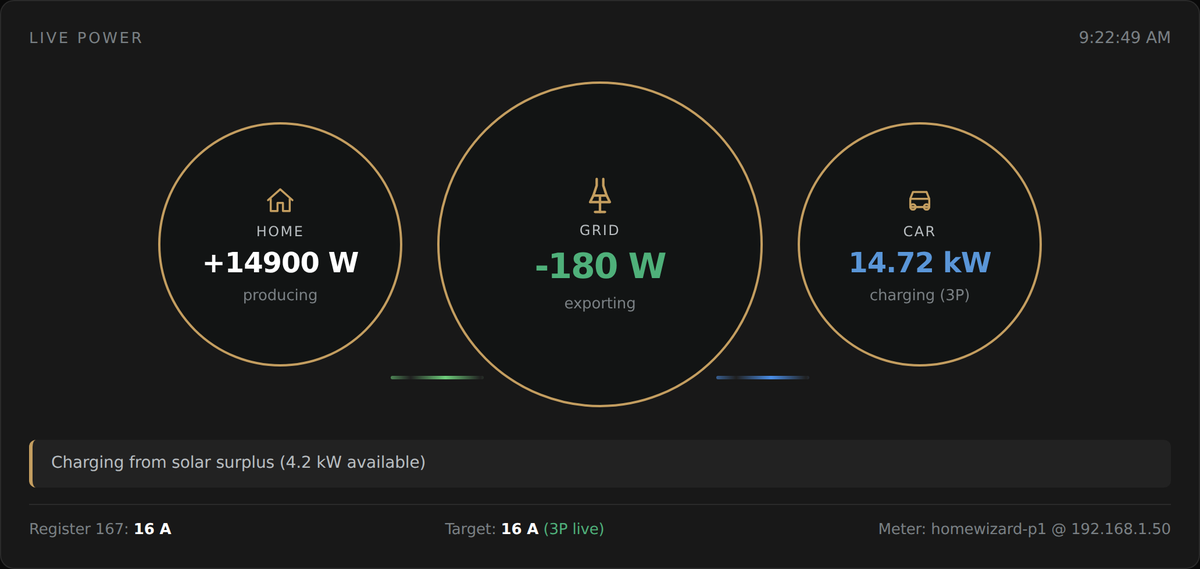
Live power
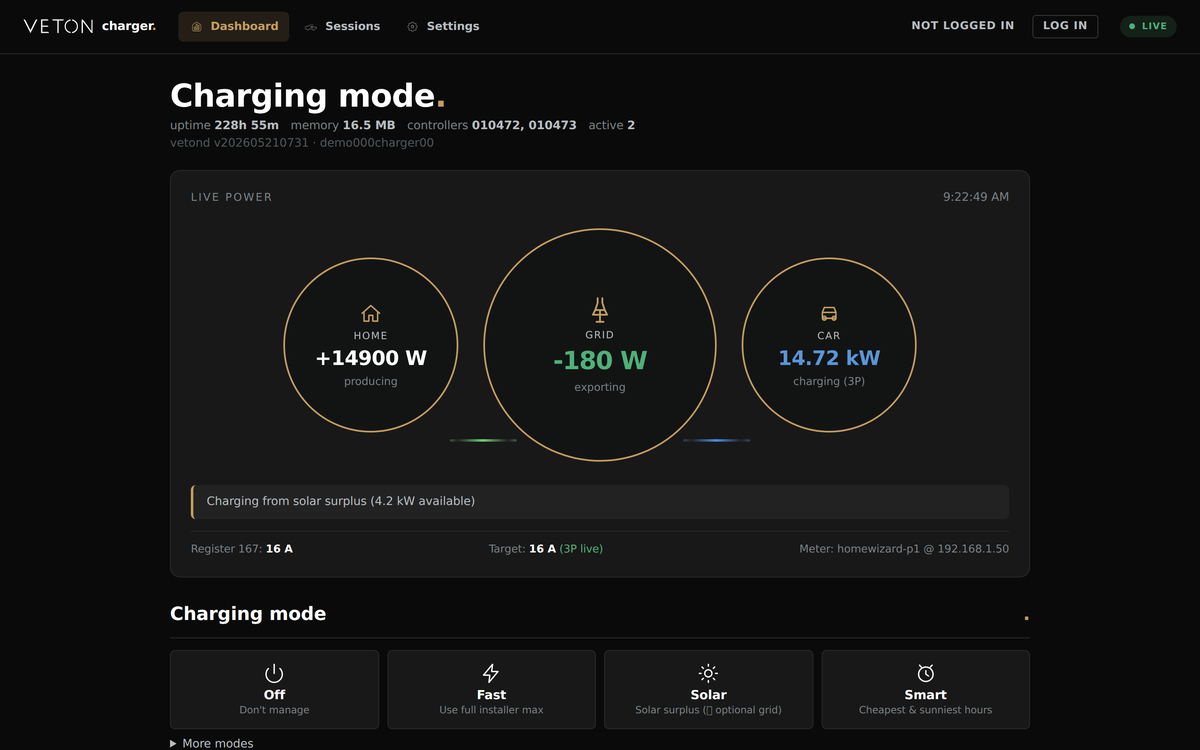
The three circles show where the energy is flowing right now: what the home is producing or using, what is being drawn from or sent back to the grid, and what the car is taking. The line underneath explains in words why the charger is doing what it does, for example that it is charging from solar surplus. The footer shows the current limit the charger has been given (the line labelled Register 167), the target the charger has decided on, and which meter it is reading.
Charging mode
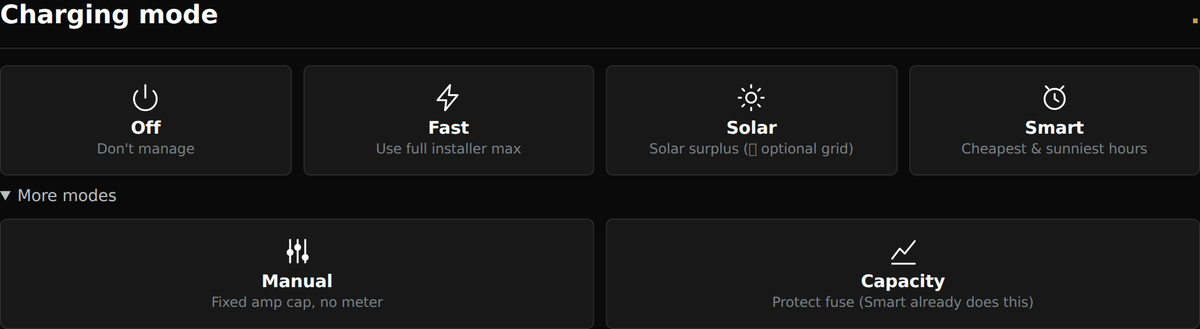
The tiles show how the charger charges. Four everyday modes are shown; Manual and Capacity are under More modes. A slider for the maximum current appears under the tiles, and Solar mode adds a second slider for how much grid power may top up the sun. Changing a tile or a slider needs the installer login, see Looking versus changing below; from the Veton app you change the mode yourself.
- Off: the car does not charge.
- Fast: charge as fast as the installation allows.
- Solar: charge from your solar surplus, with an optional grid top-up.
- Smart: the charger plans the cheapest and sunniest hours before you leave.
- Manual: a fixed current you choose yourself.
- Capacity: charge whenever possible while keeping the building's grid peak under a limit.
The getting-started guide for the app explains each mode in depth; the modes are the same in the app and on the local page.
Smart plan
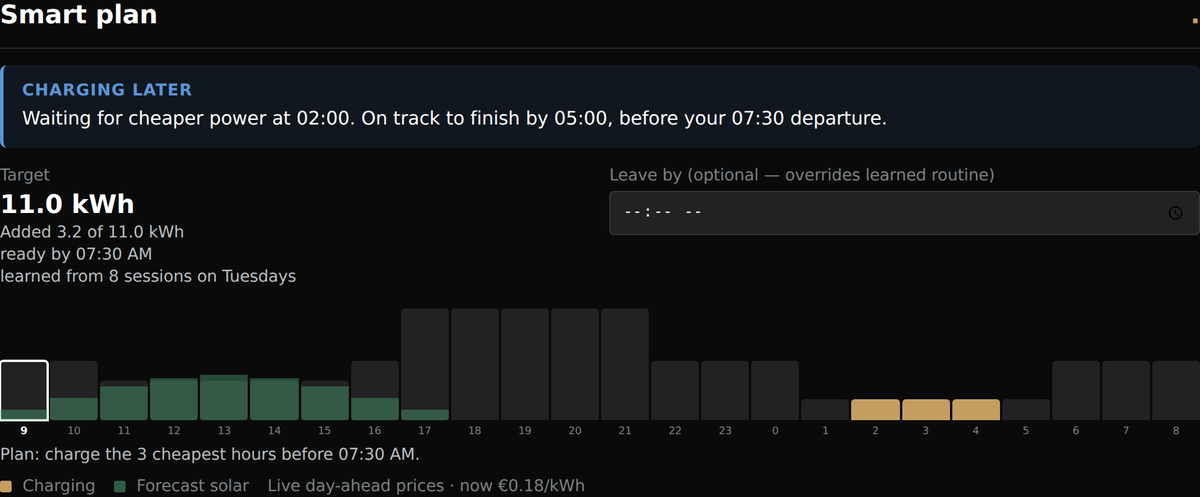
In Smart mode a plan card appears. It says in words what the charger is waiting for, how much energy it wants to add, by when the car will be ready, and shows the planned hours against the price curve and the solar forecast. The Leave by field lets you override the routine the charger has learned.
History, monthly peak and phases
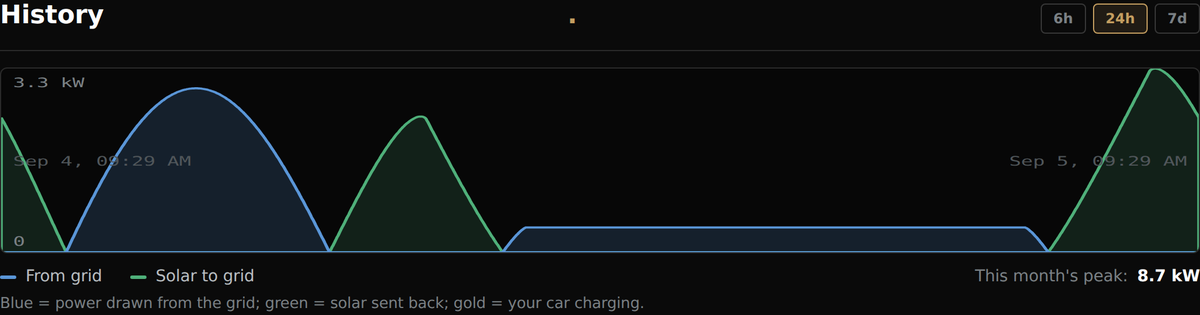
The history chart shows grid import, solar export and car charging over the last 6 hours, 24 hours or 7 days, with this month's highest grid peak. The monthly peak bars are for the Flemish capacity tariff. The per-phase currents show what each of the three phases is carrying at the grid connection.
Charging points
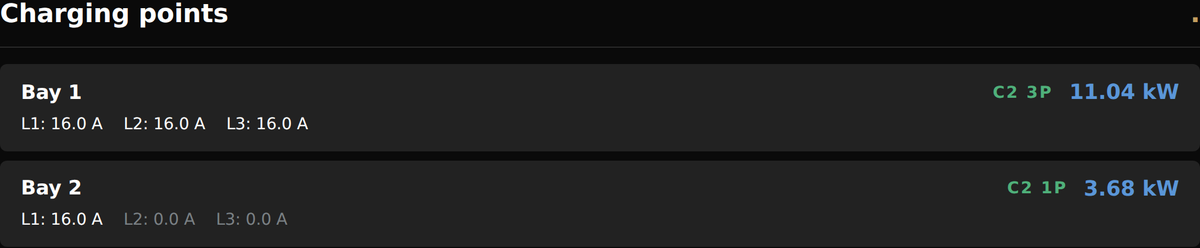
One row per socket or cable, with the live current per phase, the number of phases in use and the power the car is taking. Errors on a charging point are shown here too.
Sessions
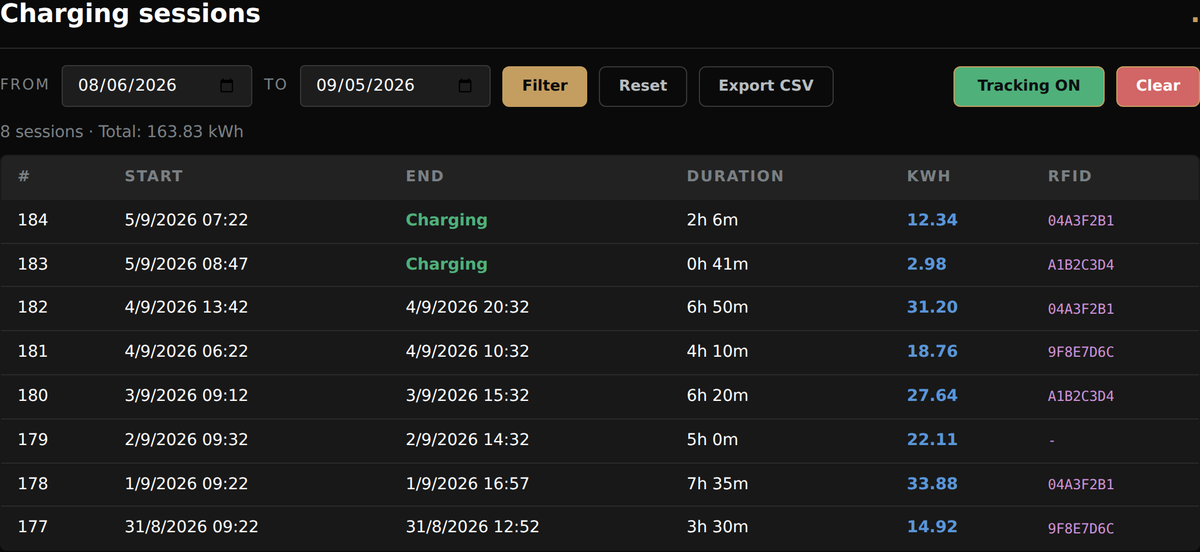
Every charging session is listed with start, end, duration, energy and the RFID card used, if any. Filter by date, then use Export CSV to download the list for your records or for expense claims.
Looking versus changing
The dashboard, the sessions and most of the Settings page can be read by anyone on the network without logging in. Only the OCPP and RFID cards on the Settings page need a login even to read them. Changing anything, such as the charging mode, the sliders or a setting, asks for a login first.
The local page has two logins of its own, an installer login and a user login. They are the charger's own accounts, not your Veton app account. Your installer creates and holds them today; most owners never need one, because the Veton app changes the mode and the sliders for you from anywhere.
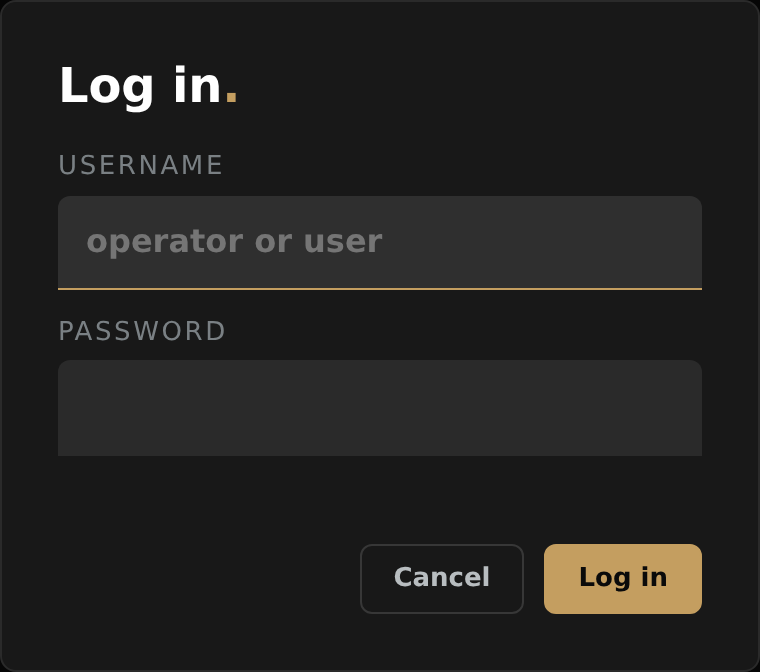
- Click Log in at the top right.
- Enter the login your installer gave you.
- You stay logged in on that device until you log out.
- The user login can read the OCPP and RFID cards and the charger's logs, clear the sessions list and pause session tracking. It cannot change the charging mode, the sliders or any setting.
- The installer login can change everything: the charging mode and sliders, and every card on the Settings page, such as fuse limits, OCPP and RFID. See the settings guide for installers.
If you want to change the mode yourself, use the Veton app. If you still need a local login, ask your installer.
Change your password
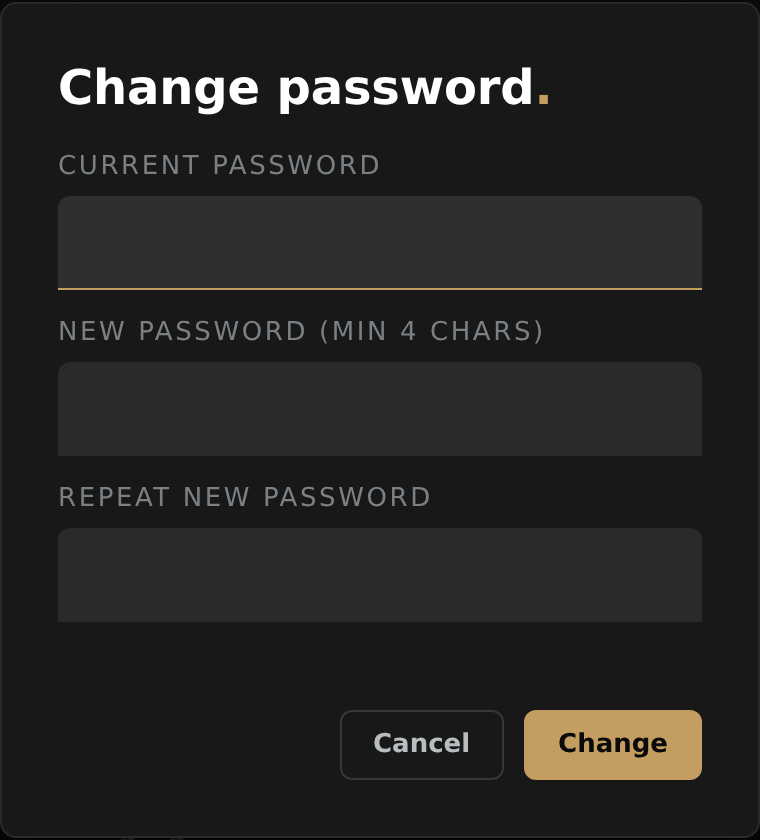
- Log in, then click Password at the top right.
- Enter the current password and the new one twice.
- Click Change. The new password applies immediately, also to the controller's own interface, which shares the same accounts.
Getting started with the Veton app
Need help?
Ask your installer first. You can also reach Veton through the contact page.
Contact Veton S’ouvre sur un autre site