Getting started with the Veton app
Install the Veton app, sign in if you want remote access, add your charger and learn what the four tabs show.
Ce guide n'est pas encore traduit dans votre langue. Vous le lisez en anglais.
Install the app
The Veton app is the everyday way to use your charger. It shows what the charger is doing right now, lets you choose how it charges, and keeps your charging history.
- Open the App Store (iPhone) or Google Play (Android) on your phone.
- Search for Veton and install the app.
- Open the app. It shows a language pill (EN or NL) and the choice between Sign in and Create an account.
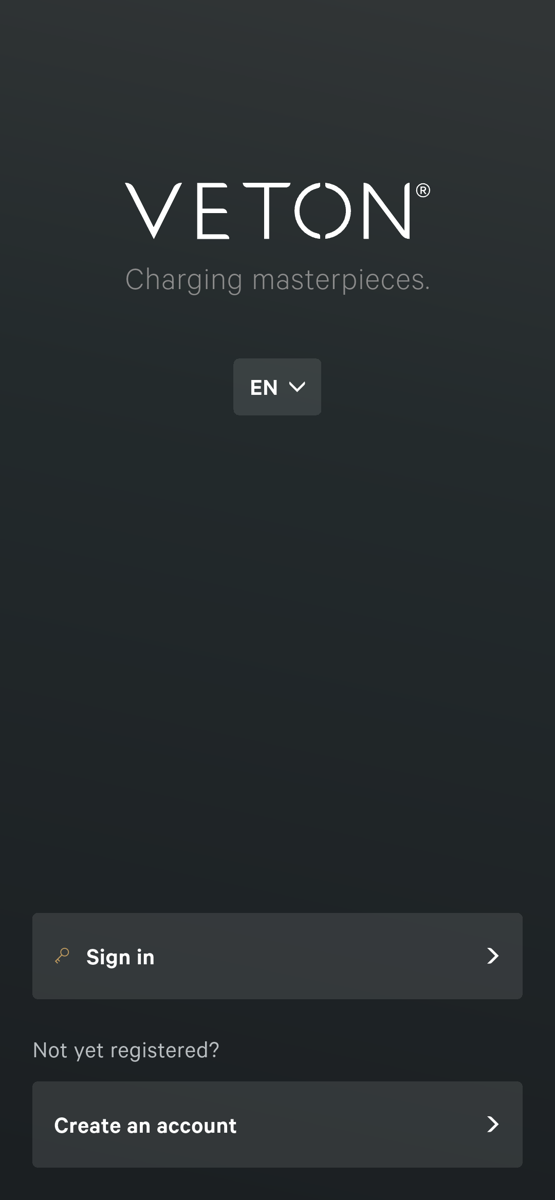
The app is available in English and Dutch. It follows the language of your phone unless you pick one yourself with the language pill or under Settings, Language.
Sign in, or skip it
Signing in is optional. When your phone is on the same Wi-Fi network as the charger, everything works without an account. Signing in adds remote access: you can check the charger and change settings from anywhere.
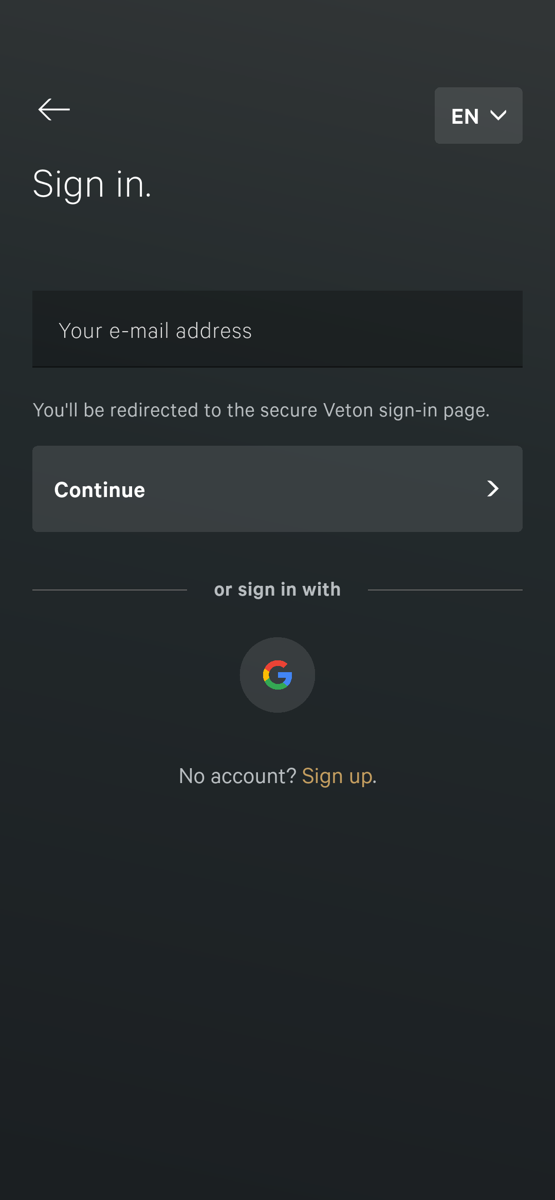
- Tap Sign in and type your e-mail address.
- Tap Continue. Your phone opens the secure Veton sign-in page in the browser.
- Type your password there. You are sent back to the app automatically.
- You can also sign in with Google. On an iPhone there is an Apple button as well.
- New to Veton? Tap Create an account instead. Choose an e-mail address and a password and tick the box for the terms and conditions.
- You can sign in later at any time from the Settings tab.
The four tabs
At the bottom of the screen a floating bar holds four icons, from left to right: a plug (Home), a bar chart (Sessions), a house with a lightning bolt (Load balancing) and a gear (Settings). The bar shows icons only. The charger name sits at the top of every tab. Tap it to switch between chargers if you have more than one.
- Home: the live view of your charger.
- Sessions: your charging history per day and per month.
- Load balancing: the screen titled Charging mode with the modes Off, Fast, Solar, Smart and more, plus the live power of your car, your home and the grid.
- Settings: Manage Chargers, Language, your account and Installer Settings.
Add your charger
There are three ways to add a charger. Most people only need the first one.
Automatic discovery on your home network
- Connect your phone to the same Wi-Fi network as the charger.
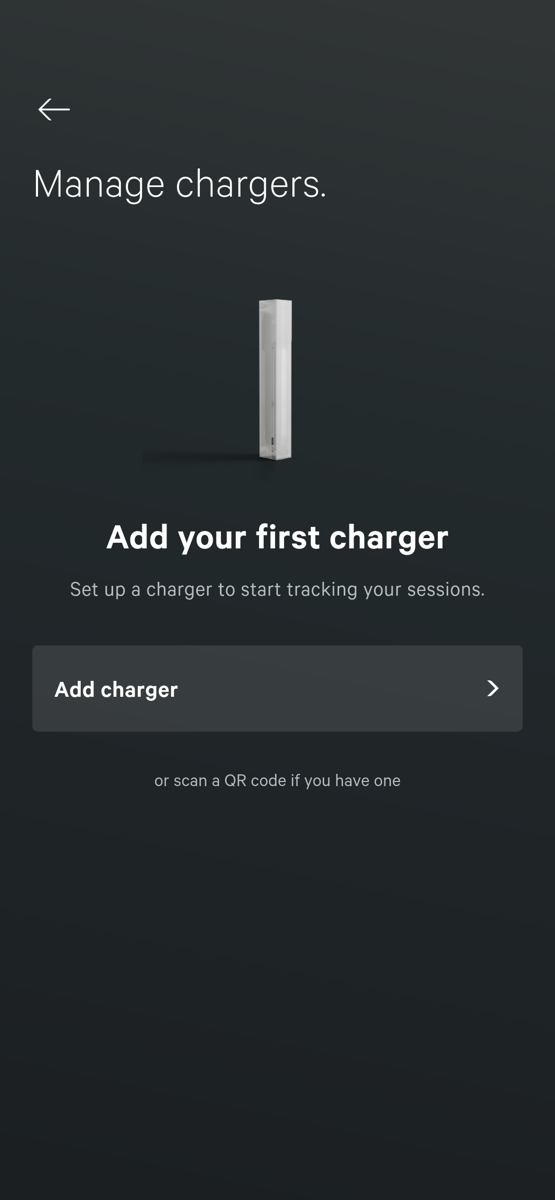
- On the Home tab, tap Start. If you already have a charger, go to Settings, then Manage Chargers, and tap Add charger.
- Tap Auto-discover charger. A Searching for charger dialog appears while the app scans your network. This takes a few seconds.
- The charger appears as Veton and the Home tab shows it.
The first time, the app also finishes setting up the charger in the background. The Settings tab shows a row Setup Session Tracking with the text Setting up charger while this runs. It can take a few minutes, and the charger keeps working meanwhile.
Add by IP address
If the automatic search does not find the charger, you can add it by hand.
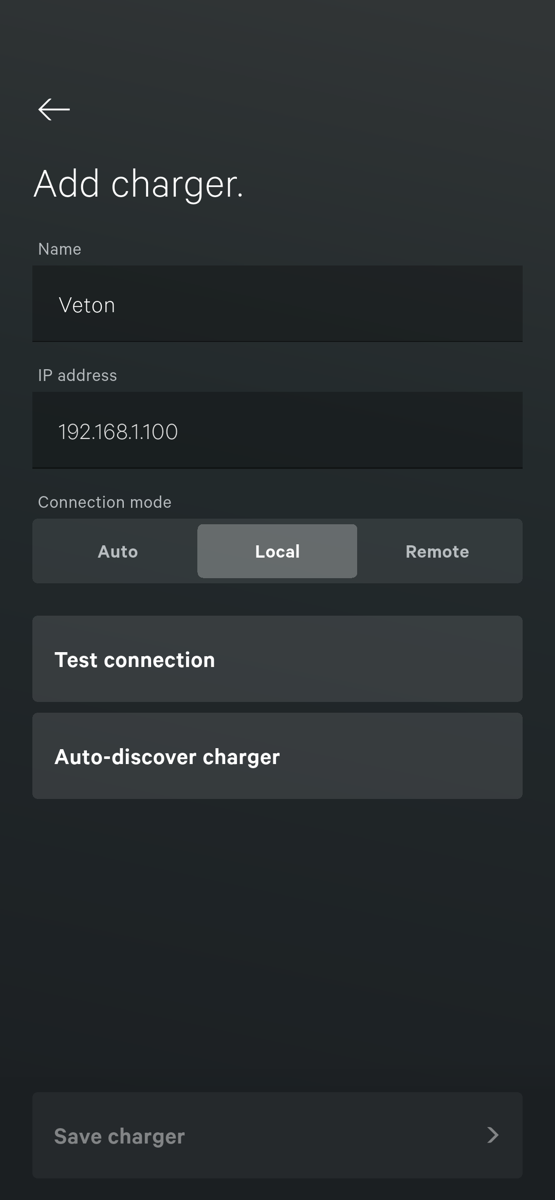
- On the Add charger screen, type a Name for the charger.
- Type the IP address of the charger on your network. Your installer or your router can tell you this address.
- Connection mode starts on Local, which talks to the charger directly on your home network. Pick Auto if you are signed in and also want to reach the charger through the Veton cloud when you are away.
- Tap Test connection. Connection successful means the app can reach the charger; otherwise the app tells you what is wrong.
- Tap Save charger once the test passes.
Use the QR label
On the outside of the charger's components cabinet there is a setup label with a QR code. Scanning it with your phone camera opens a guided setup that connects the charger to your account. This is how your installer commissions a new charger, and it is the easiest way to link a charger to your account.
Set up a charger with the QR label
What the home screen shows
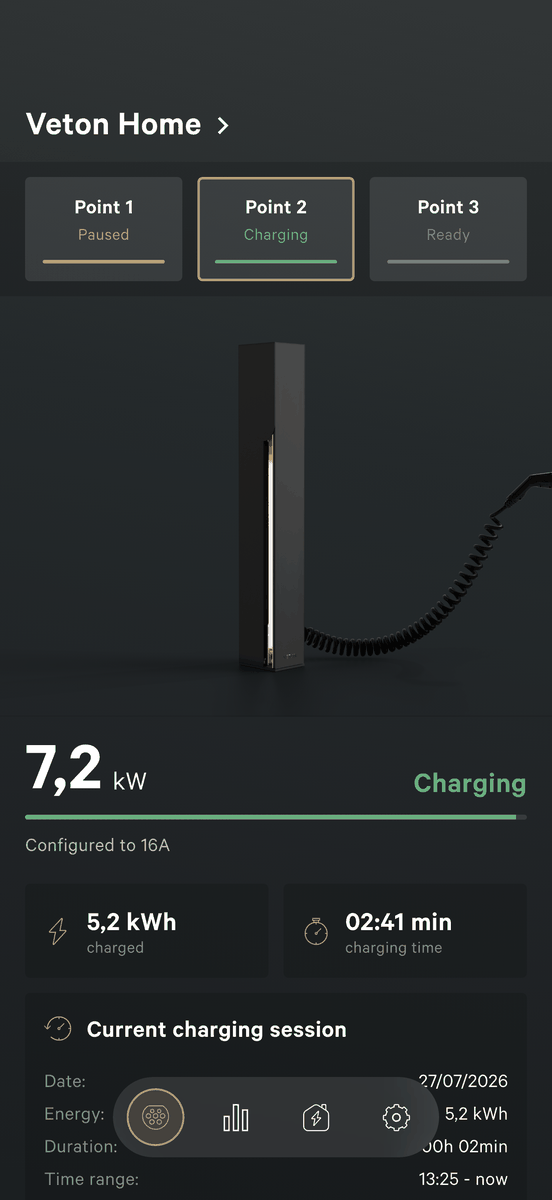
- The big number is the live charging power in kW: how fast the car is charging right now.
- Next to it is the status: Ready when nothing is plugged in, Charging while the car takes power, Complete when the car is full.
- Configured to 16A is the ceiling the charger offers the car. A car that is nearly full or asleep takes less than this.
- If your charger has several charging points, a row of chips at the top shows the state of each point. Tap a chip to look at that point.
- The two cards show the energy charged and the charging time of the current or last session.
- The session card at the bottom shows the date, energy, duration and time range. Tap Consult charging sessions to open the full history.
There is no start or stop button. Plug in the car and the charger starts on its own, unless the charging mode is Off or the charger is waiting for solar power or cheaper hours. To stop a charge, set the mode to Off on the Load balancing tab. That tab also tells you why the charger is waiting.
The Settings tab
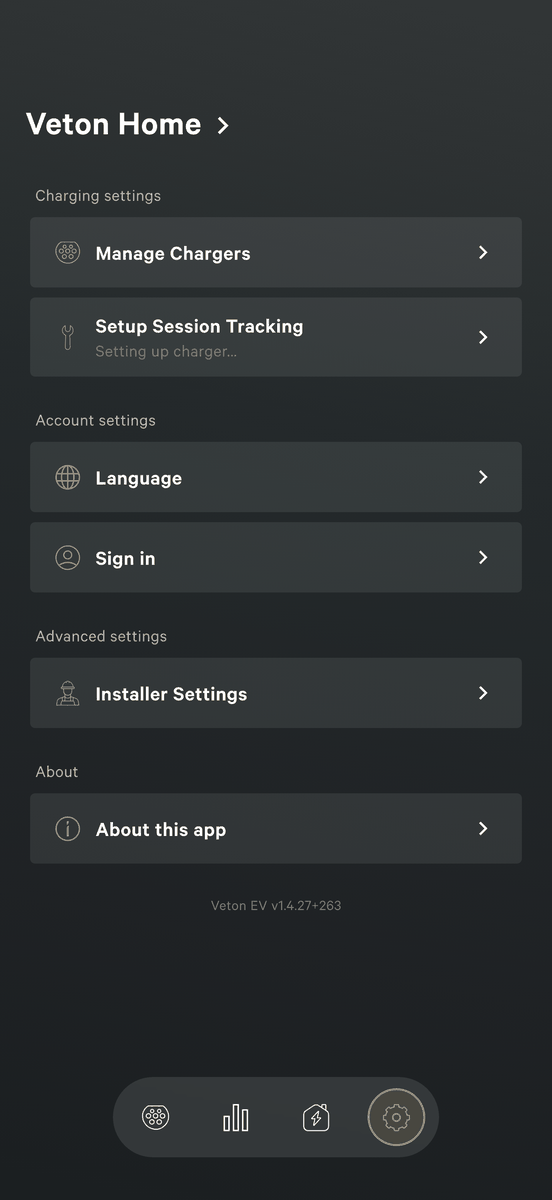
- Manage Chargers lists your chargers. Here you add, rename or delete one. Delete charger also removes the charger from your account. For 30 days you can add it back without the setup PIN, under Recently removed on the Chargers page at v2.vetoncontrol.com. Sign in there with the same account you use in the app. This works for customer accounts.
- Setup Session Tracking shows the background setup of a freshly added charger. Setting up charger means it is still running.
- Language switches between English and Dutch.
- Sign in opens the sign-in page. Once signed in you also see Personal information, Account security and Sign out here.
- Installer Settings holds the technical settings your installer uses. They sit behind a warning dialog so you do not change them by accident.
Next: charging modes and smart charging
Something not working? Ask your installer first. You can also reach Veton through the contact page.
Contact Veton S’ouvre sur un autre site